
If you deploy your app on Vercel, you've probably been running trigger.dev deploy manually or bolting it onto a GitHub Actions workflow. That's over. The new Vercel integration connects your Vercel project directly to Trigger.dev so that every Vercel deployment automatically triggers a Trigger.dev deployment, syncs your environment variables, and (optionally) gates your Vercel deployment until your tasks are built.
One connection. Zero manual steps.
What it does
Three things, all automatic:
- Automatic deployments: Push code, Vercel deploys your app, Trigger.dev deploys your tasks. No
trigger.dev deploycommand, no CI/CD config to maintain. - Environment variable sync: Variables flow both ways. Your Vercel env vars get pulled into Trigger.dev before each build. Trigger.dev syncs API keys (like
TRIGGER_SECRET_KEY) back to Vercel. - Atomic deployments: Your Vercel app and Trigger.dev tasks deploy in lockstep. Your app never goes live with a mismatched task version.
Atomic deployments
This is the feature that previously required a custom GitHub Actions workflow to set up. Now it's a toggle.
When atomic deployments are enabled, Trigger.dev gates your Vercel deployment until the task build completes, sets the correct TRIGGER_VERSION, then triggers a Vercel redeployment. Your app always uses the exact version of tasks it was built with.
Here's the full sequence:
Atomic deployments are enabled for production by default. The integration automatically disables Vercel's "Auto-assign Custom Production Domains" so deployments aren't promoted before your tasks are ready.
Environment mapping
The integration maps Vercel environments to Trigger.dev environments:
| Vercel environment | Trigger.dev environment |
|---|---|
| Production | Production |
| Custom environment | Staging (you choose which one) |
| Preview | Preview |
| Development | Development |
If your Vercel project has a custom environment (like "Staging"), you can map it to your Trigger.dev staging environment during setup.
Environment variable sync
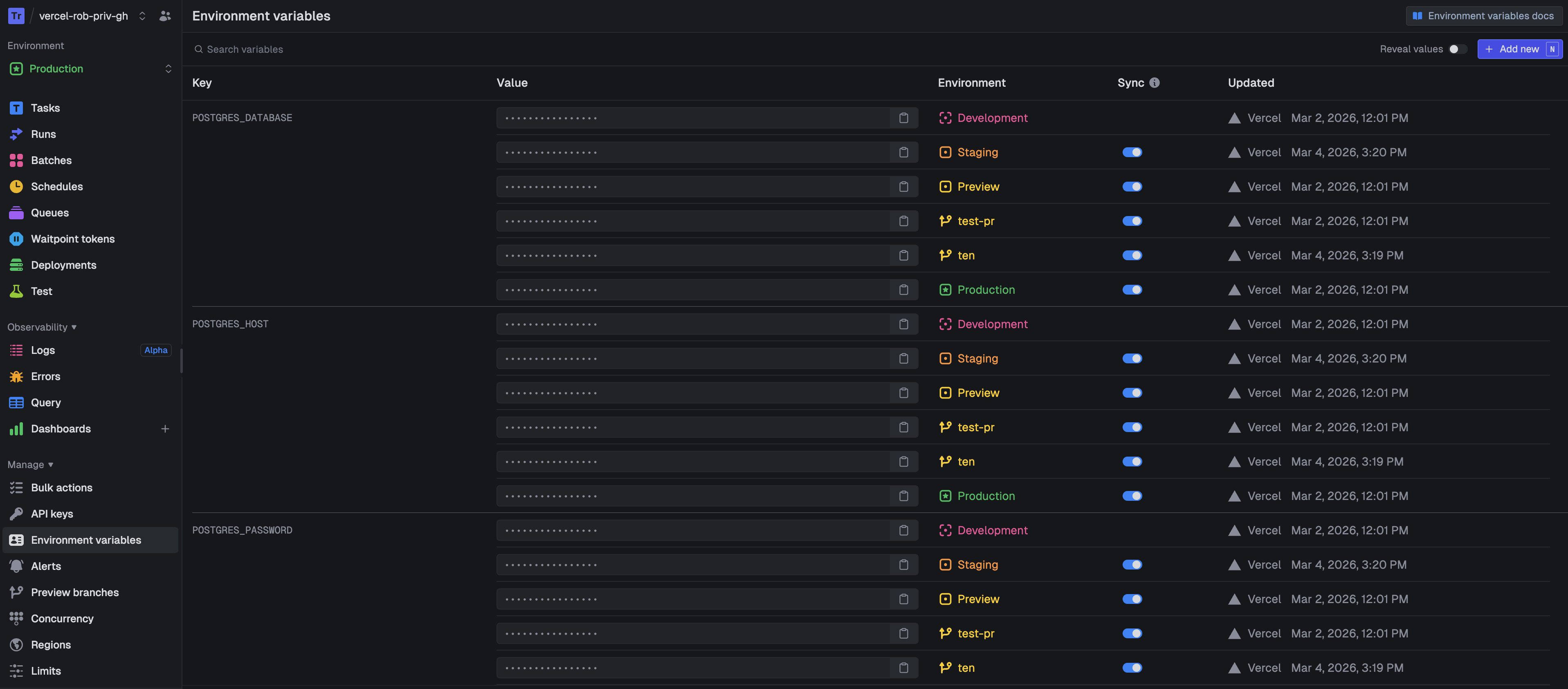
Sync happens in both directions:
Vercel to Trigger.dev: Your Vercel env vars get pulled into Trigger.dev per-environment (production, staging, preview). This happens during setup and optionally before each build. You can control sync behavior per-variable from your environment variables page.
Trigger.dev to Vercel: API keys like TRIGGER_SECRET_KEY are synced to your Vercel project automatically.
If you use Supabase Branching or Neon Database Branching for preview environments, disable syncing for database env vars and use the syncSupabaseEnvVars or syncNeonEnvVars build extensions instead. These resolve the correct branch-specific credentials at build time.
Build options
Per-environment configuration from your project's Vercel settings:
- Atomic deployments: Sync Vercel and Trigger.dev deployments. On by default for production.
- Pull env vars before build: Pull the latest Vercel env vars before each Trigger.dev build. On by default.
- Discover new env vars: Automatically create new Trigger.dev env vars when new ones appear in Vercel. On by default.
Linked Trigger.dev and Vercel deployments
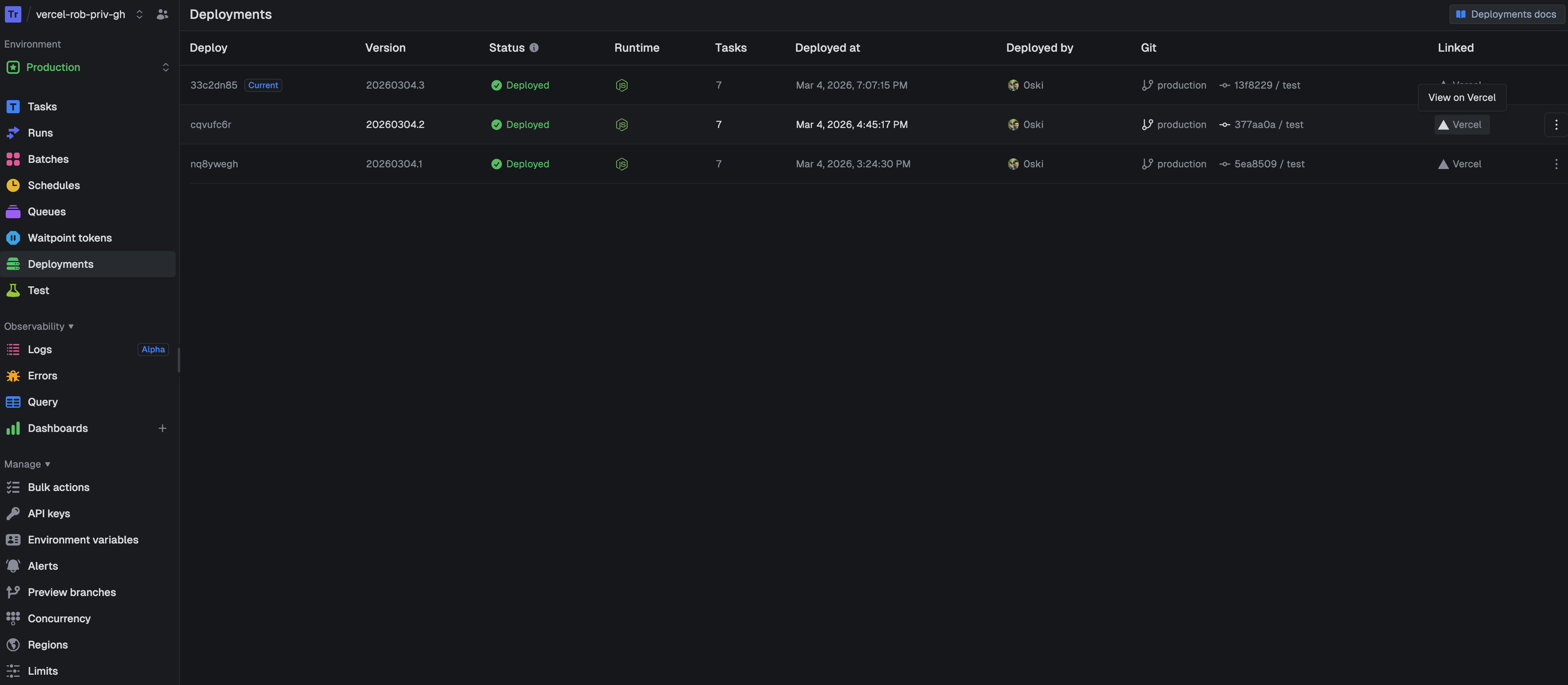
Trigger.dev creates deployment checks on your Vercel deployments, so you can see the status of your task build right from Vercel. And on the Trigger.dev side, each deployment stores a direct link back to the corresponding Vercel deployment. No more tab-switching to figure out which app deploy matches which task deploy. Both sides reference each other, and you can jump between them from the deployments page.
Getting started
Connect an existing project from two places:
- From Trigger.dev: Go to your project's Settings page and click "Connect Vercel."
- From the Vercel Marketplace: Install the Trigger.dev integration and follow the setup flow.
Or deploy our Next.js + Trigger.dev starter app from GitHub in one click.
All paths require the GitHub integration to be connected, since Trigger.dev builds your tasks from your GitHub repository.