> ## Documentation Index
> Fetch the complete documentation index at: https://trigger.dev/docs/llms.txt
> Use this file to discover all available pages before exploring further.
# Billing limits and alerts
> Set a monthly compute spend cap for your organization and get email alerts before you reach it.
Billing limits let you cap your organization's monthly compute spend so a runaway task or unexpected traffic spike can't blow your budget. Billing alerts notify you by email as you approach thresholds you choose.
Billing limits and alerts are available to all [Trigger.dev Cloud](https://trigger.dev) organizations. They don't apply to self-hosted instances.
You can find the settings in the dashboard: open the **Organization** menu in the top left, then **Settings** → **Billing limits**.
## Setting a billing limit
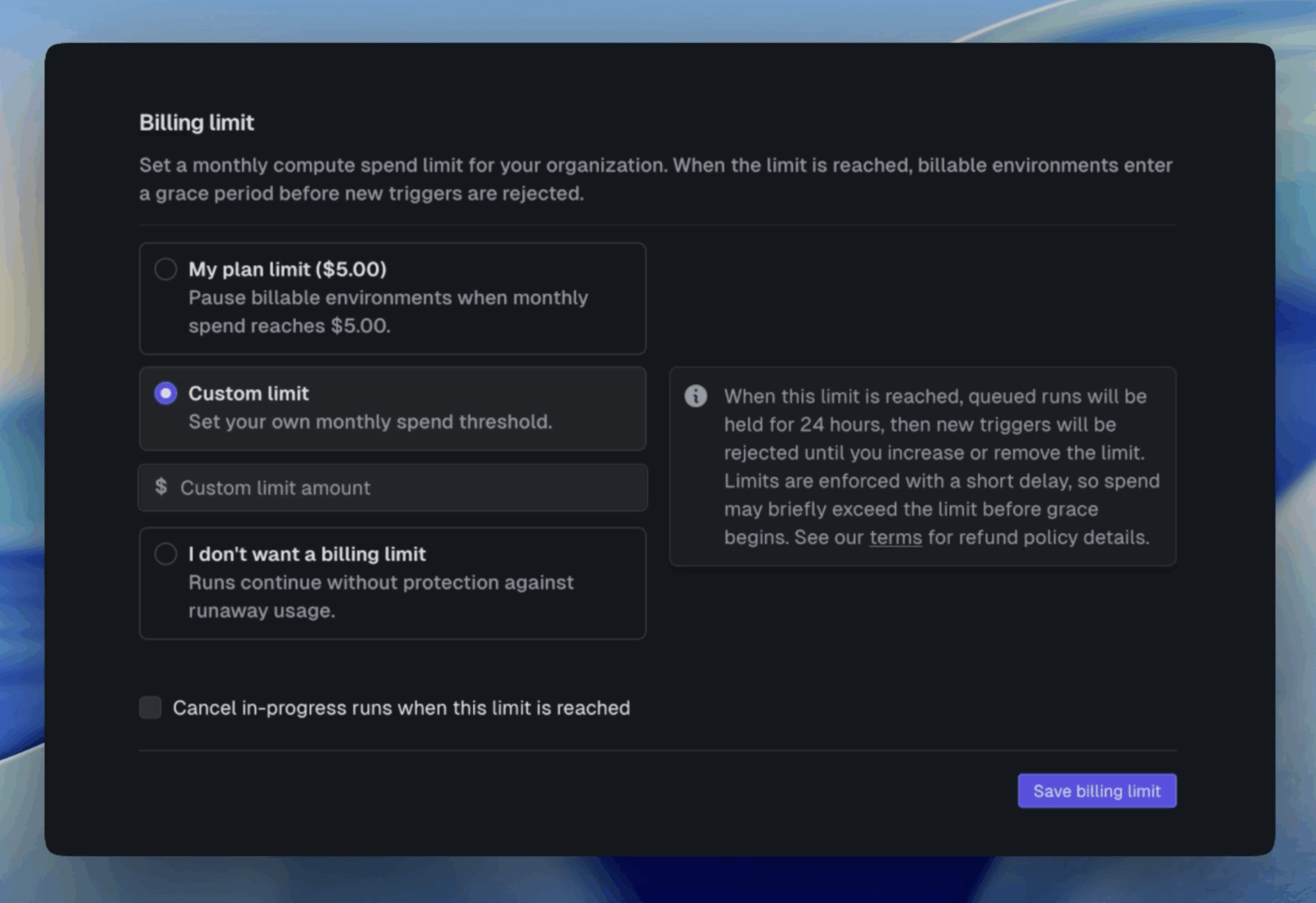
Choose one of three options:
* **Plan limit**: Use your plan's maximum as the spending cap.
* **Custom limit**: Set your own monthly spend threshold.
* **No limit**: No cap is enforced. This is the default.
A billing limit applies to your whole organization and covers billable environments: `production`, `staging`, and `preview`. Your `dev` environment is not affected.
Optionally, enable **Cancel in-progress runs when this limit is reached** to immediately cancel executing runs when the limit is hit, instead of letting them finish naturally.
## Billing alerts
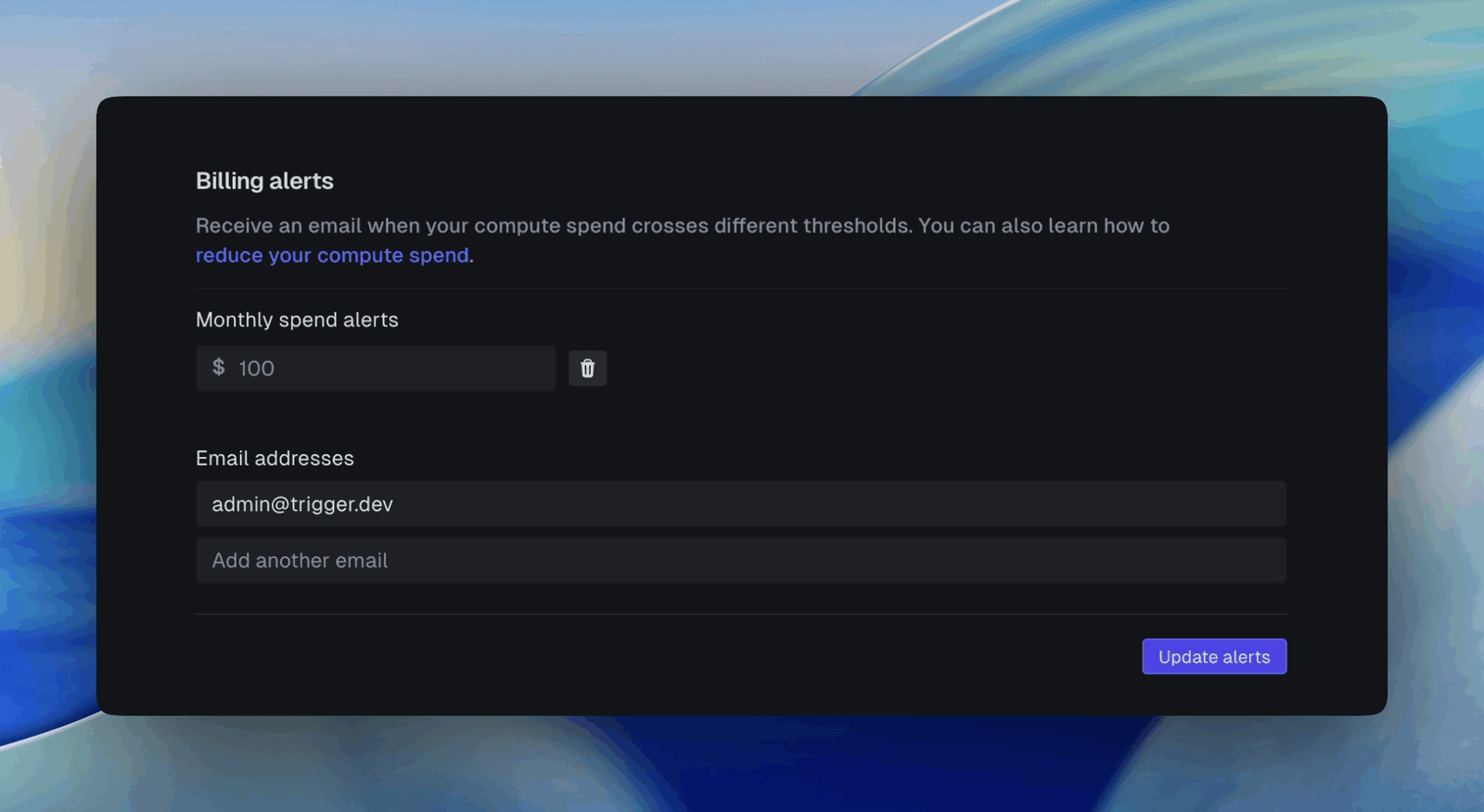
Billing alerts are email notifications sent when your monthly spend crosses a threshold. You can add multiple thresholds:
* **With a billing limit set**: thresholds are percentages of your limit (e.g. 50%, 80%).
* **Without a billing limit**: thresholds are dollar amounts.
Alerts only notify you — they never pause environments or reject runs. Use them on their own for visibility, or alongside a limit to get advance warning before enforcement kicks in.
## What happens when you reach your limit
When your organization's spend reaches the billing limit, billable environments enter a **grace period**:
1. Queues pause across `production`, `staging`, and `preview`. In-progress runs finish naturally (unless you enabled **Cancel in-progress runs**).
2. New runs can still be triggered and are queued, but they won't start executing. Queued runs incur no compute cost until they start.
3. You have **24 hours** to review and decide what to do.
If you don't act before the grace period ends, queued runs are canceled and new triggers are rejected for the rest of the billing cycle.
Billing limits are **soft limits**, not instantaneous hard caps. Usage is evaluated on a short
delay, so spend can briefly exceed your limit before enforcement applies. See our
[terms](https://trigger.dev/terms) for refund policy details.
## Resuming after hitting a limit
To resume execution, increase or remove the billing limit from the **Billing limits** page. You'll be asked what to do with the runs that queued up during the pause:
* **Resume queued runs**: everything that built up during the pause runs in order.
* **Cancel queued runs**: the backlog is discarded and only new triggers run going forward.
Execution resumes automatically once you've resolved the limit. Limits also reset at the start of each billing cycle.
## Tracking spend against your limit
On the **Usage** page (Organization menu → **Usage**), a **Billing limit** marker appears on the usage bar alongside your current spend and plan included usage, so you can see how close you are at a glance.
For tips on lowering your spend in the first place, see [How to reduce your spend](/how-to-reduce-your-spend).